UK BASED ∙ UK STOCK ∙ ESTABLISHED 2010
2 YEAR WARRANTY ∙ FAST DELIVERY
EXPERT TECHNICAL SUPPORT
 CHANGE:


This guide will show you how to install dual-boot CoreELEC on Xiaomi TV Box S (3rd Gen) without the need for additional cables or a PC (without ADB).
1. PREPARE XIAOMI TV BOX S (3RD GEN)
- Turn on Xiaomi TV Box S (3rd Gen). Go through the Google TV setup process until you get to the home screen. It is necessary to be signed into a Google account so you can access settings and complete the later stages.
- After the first CoreELEC boot the Xiaomi remote will not work. It can be enabled in CoreELEC Bluetooth settings (it needs to be paired), but on first boot you will either need a compatible CEC remote (it's likely your TV remote will work) or a USB mouse/keyboard.
Ugoos SK4 Pro + Gigabit + Multi-USB 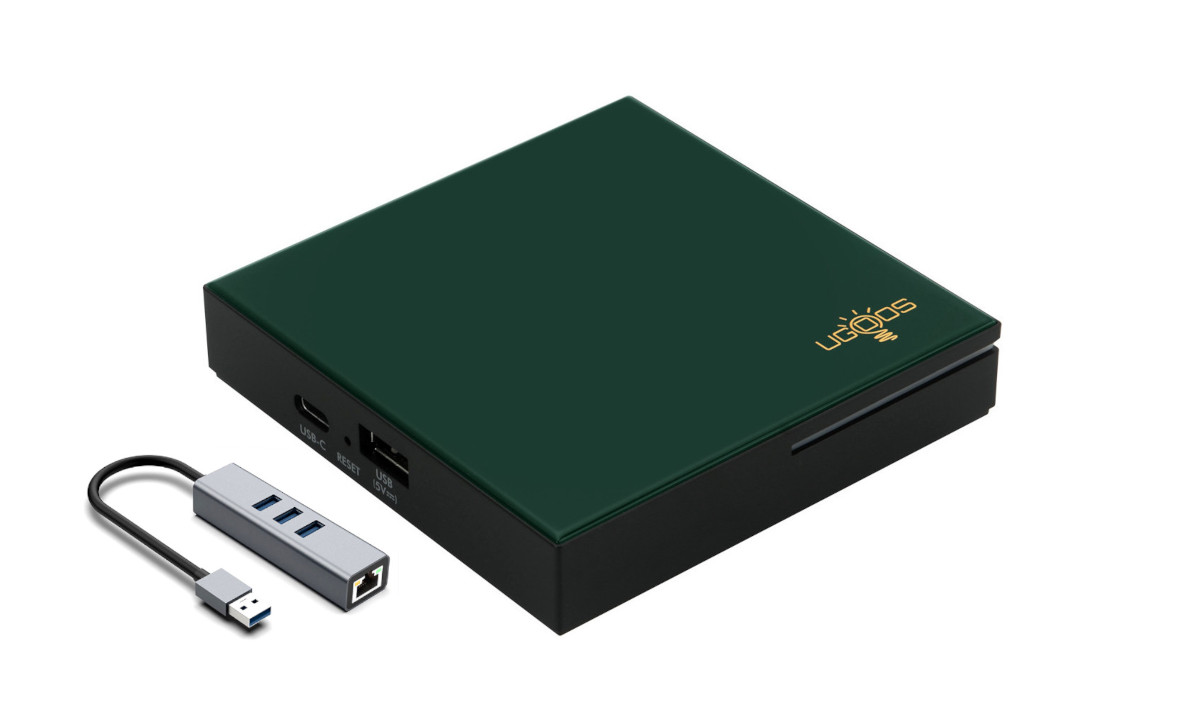 4K CoreELEC compatible Android Media Player + multi-USB & Gigabit Ethernet.  £187.99 | Ugoos AM9 Pro 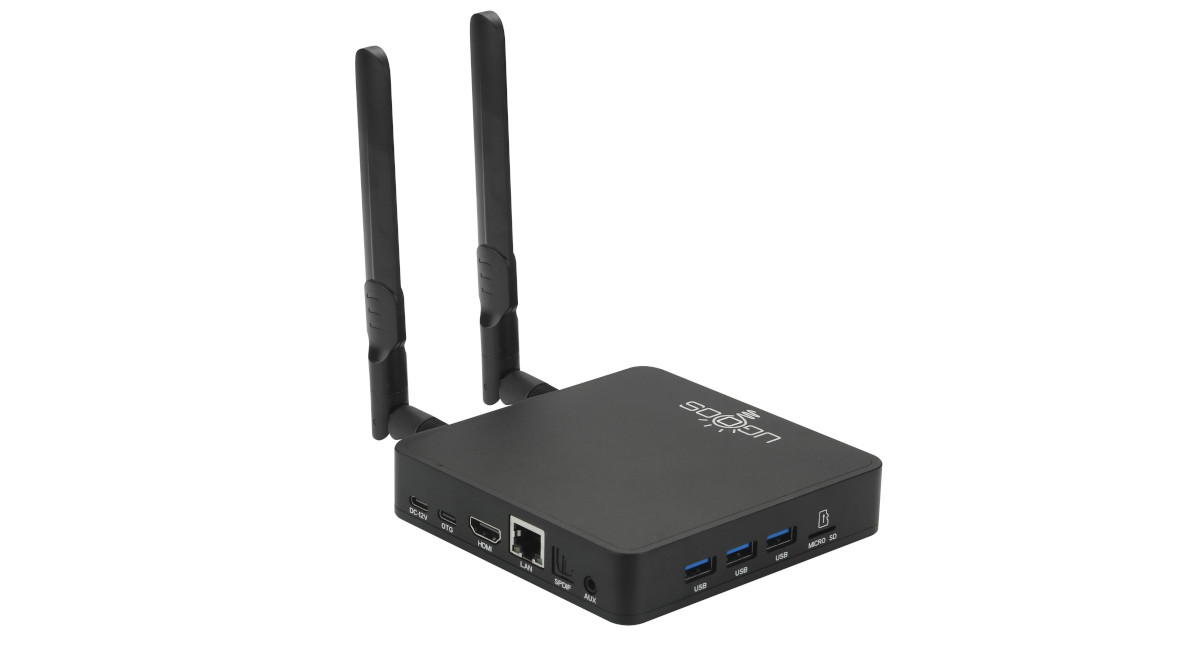 4K CoreELEC compatible Android Media Player. £270.24 | Ugoos UR02 Remote 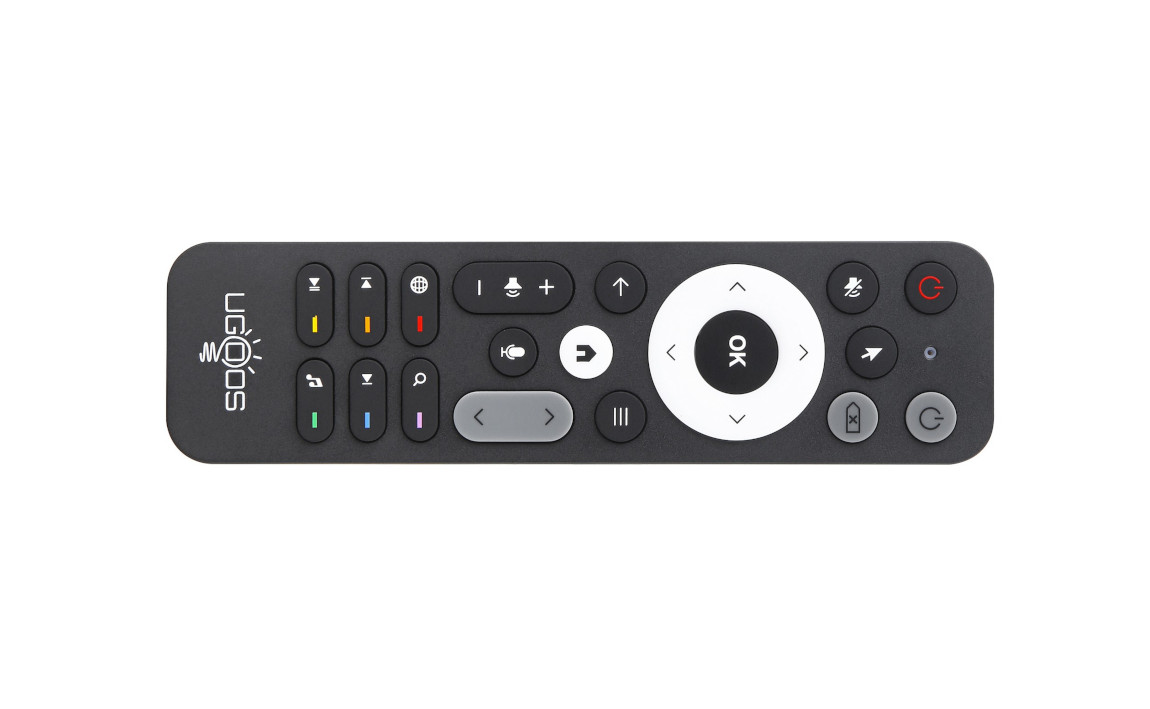 Ugoos UR02 Bluetooth Airmouse Voice Remote. £41.11 | Ugoos SK4 Pro 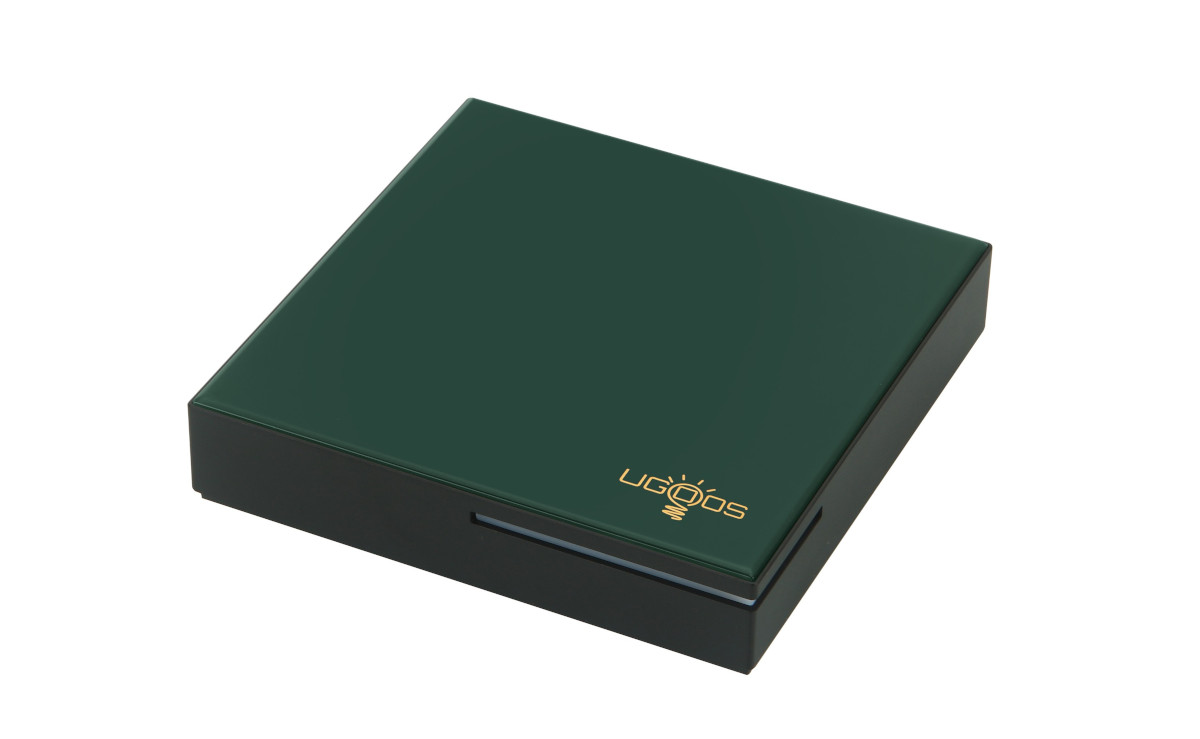 4K CoreELEC compatible Android Media Player. £176.24 |
2. PREPARE COREELEC BOOTABLE USB FLASH DRIVE
- Download the latest CoreELEC build: https://relkai.coreelec.org/?dir=Amlogic-no/ce-22. Choose 'Amlogic-no.......Generic.img.gz'.
- Create a bootable USB flash drive of the downloaded image using Rufus (Windows) or similar image writing app (e.g. 'USB Image Writer' in Linux).
- Open the 'device_trees' folder of the CoreELEC USB drive you have just created.
- Locate the correct 'dtb' file. For Xiaomi TV Box S (3rd Gen) this is 's7d_s905x5m_xiaomi_3rd_gen.dtb'.
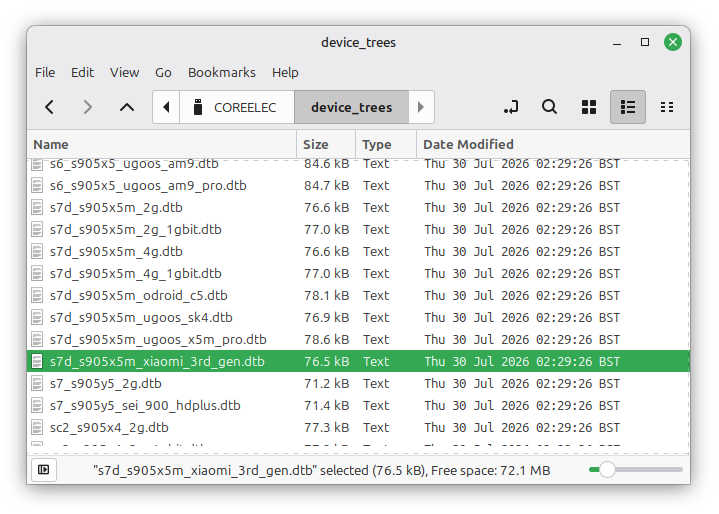
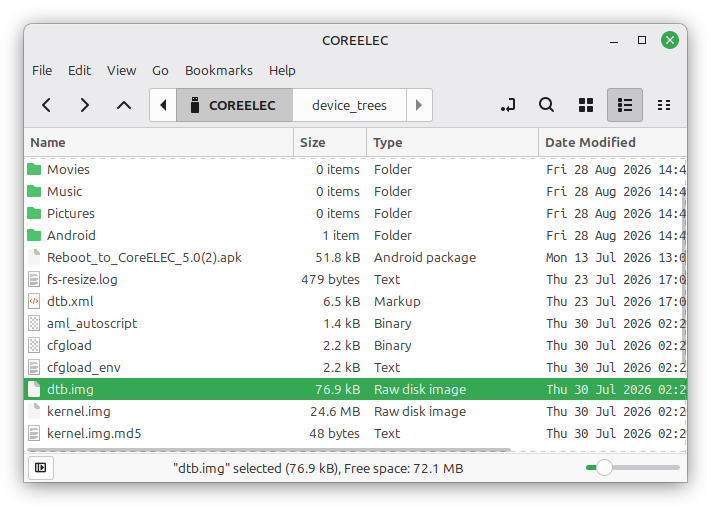
- Copy this file into the root of the USB drive and rename it to 'dtb.img':
3. INSTALL COREELEC
- On a PC/Mac, download 'Reboot_to_CoreELEC_5.0.apk' and copy to a USB flash drive. This can be any USB drive but it's convenient to use the CoreELEC one you just created. Download here: https://github.com/jamal2362/Reboot-to-CoreELEC/releases.
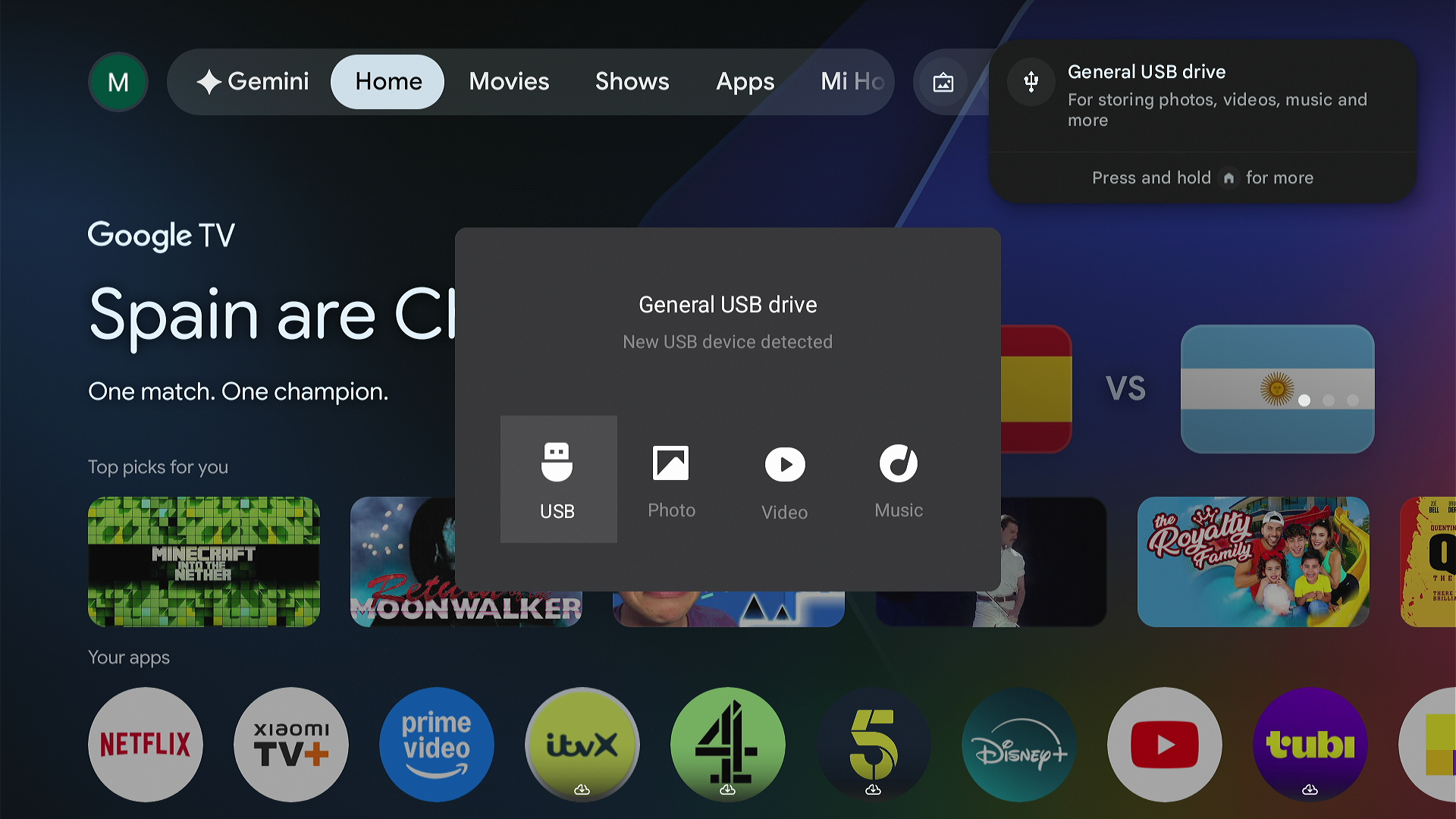
- Insert USB flash drive into Xiaomi TV Box S (3rd Gen). You should get a pop up asking what to do with the drive. Select 'USB' and then select the 'Reboot_to_CoreELEC_5.0.apk' file to install the apk.
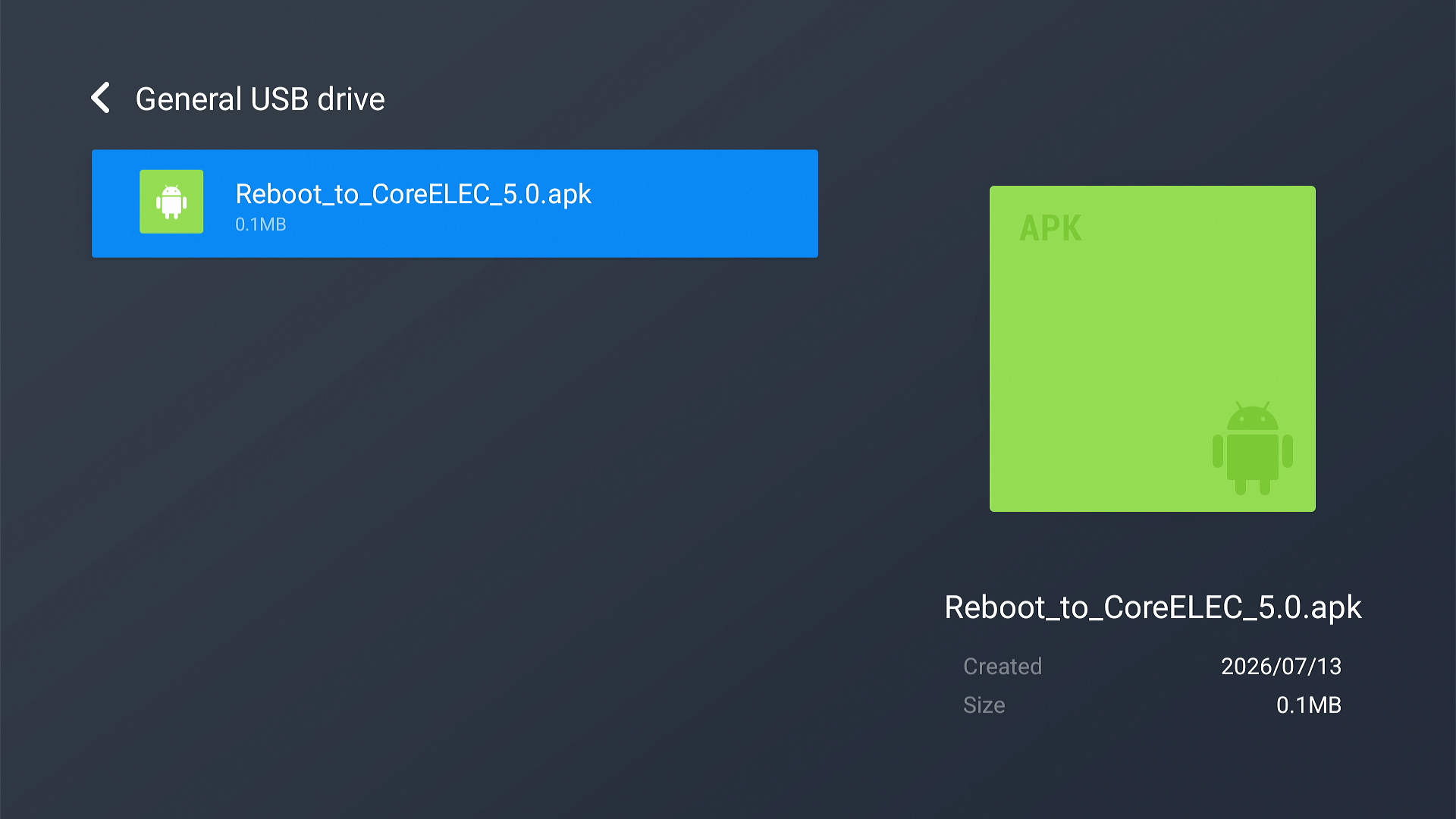
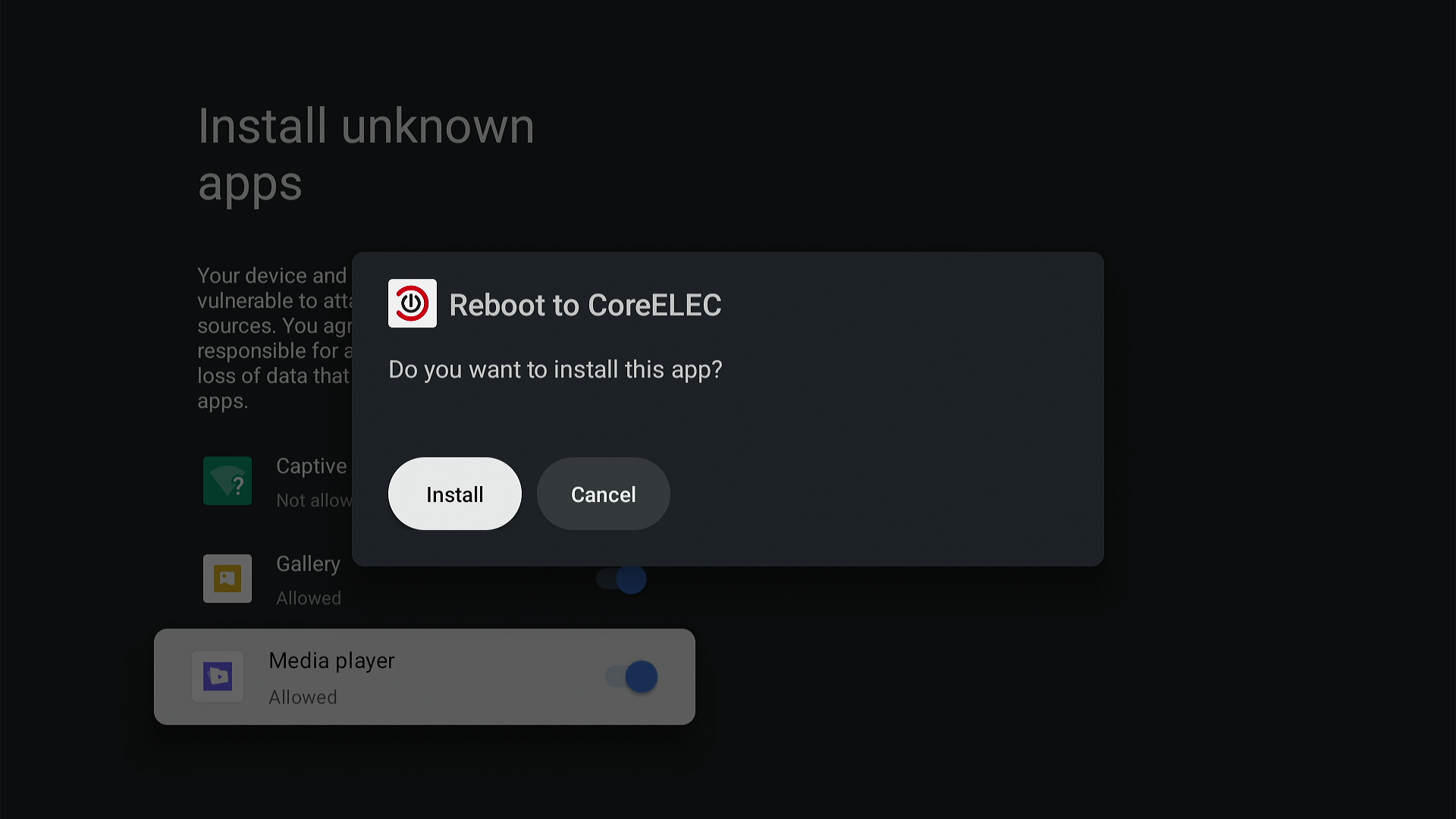
- You may get a pop-up saying that 'Media Player not allowed to install unknown apps'. Go to settings and enable installation of unknown apps for the Media Player app.
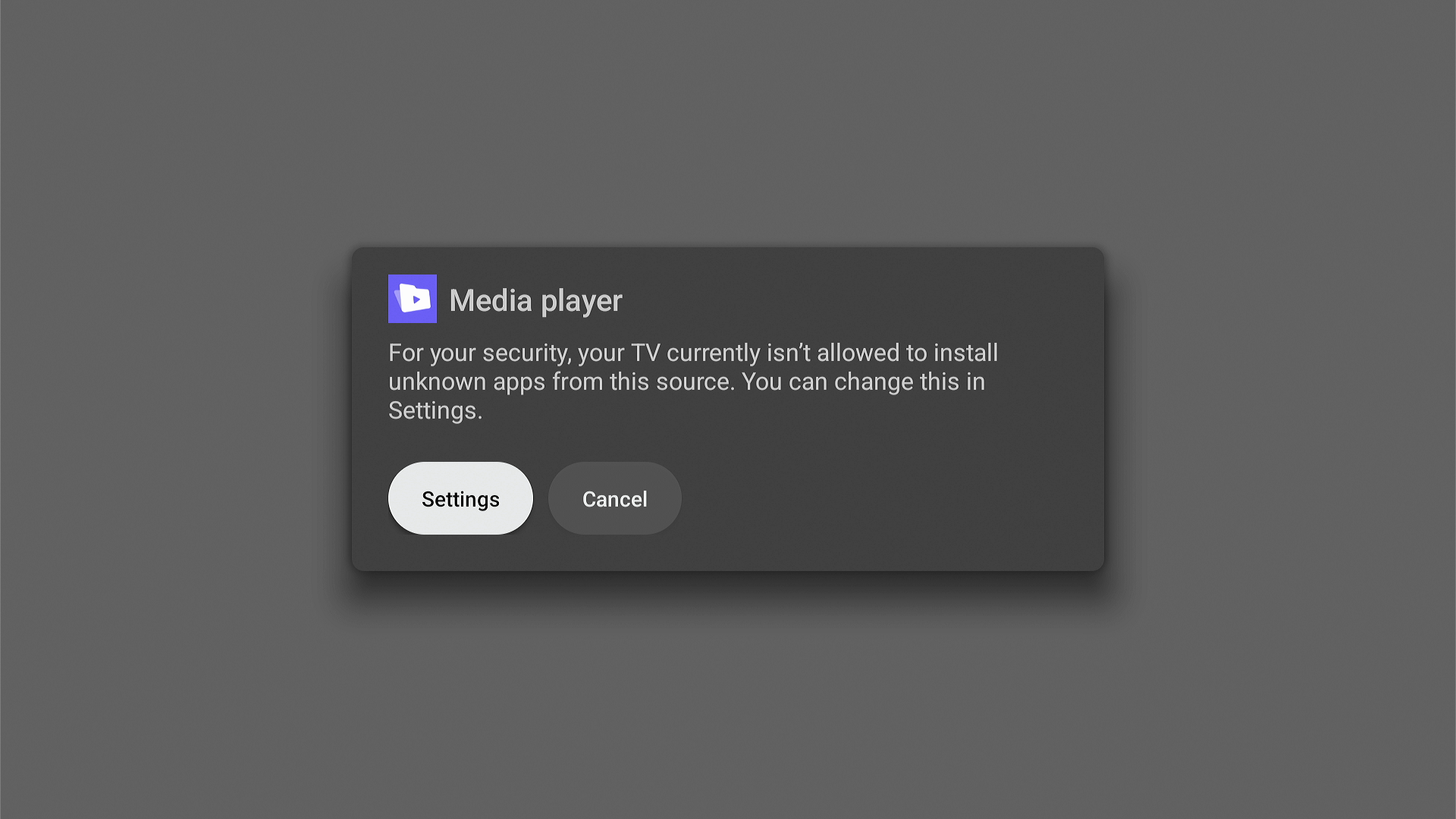
- Install Reboot to CoreELEC. It will now appear in the home screen 'Your apps' section.
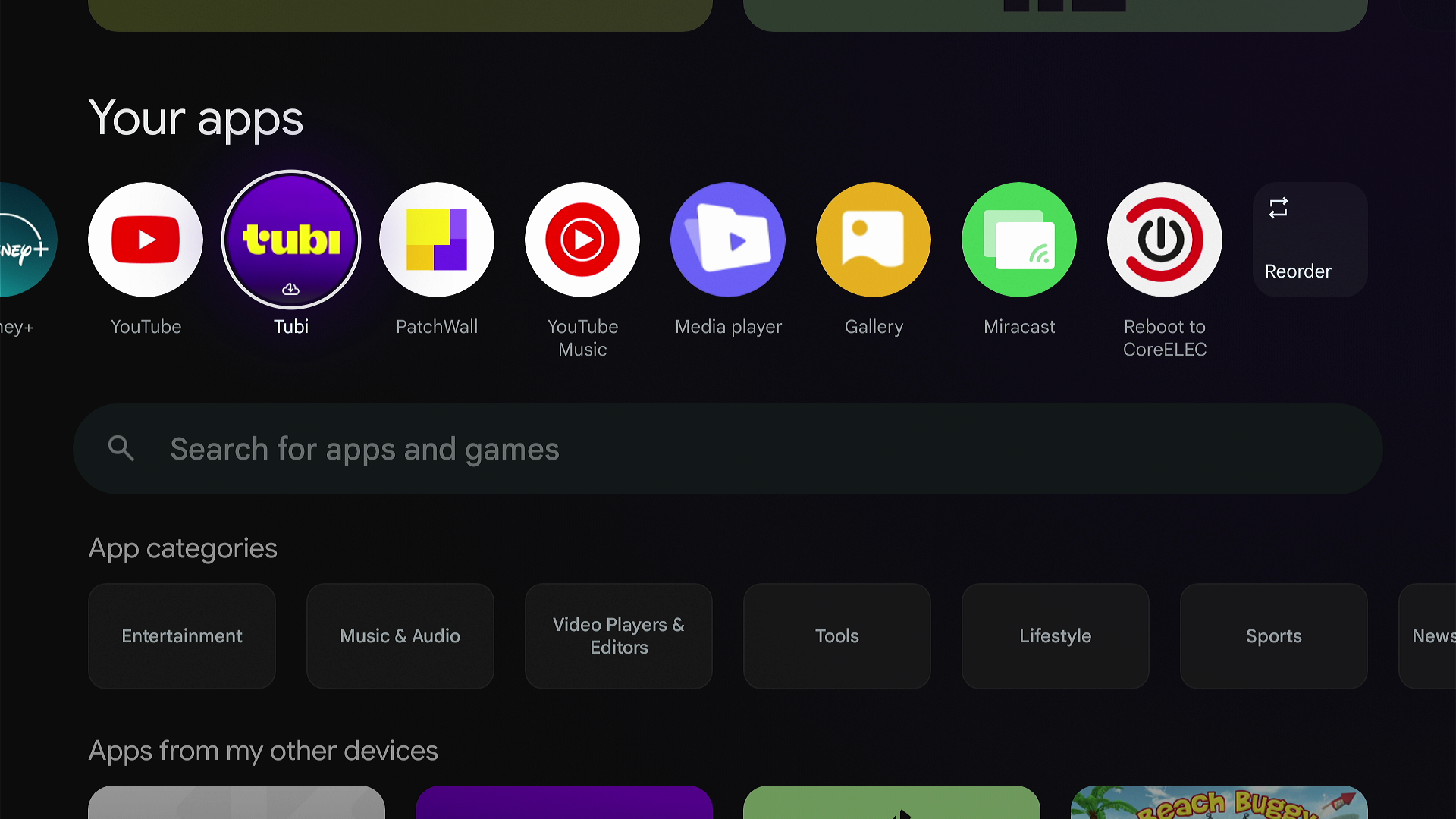
- Enable Developer Mode on the Xiaomi TV Box S (3rd Gen).
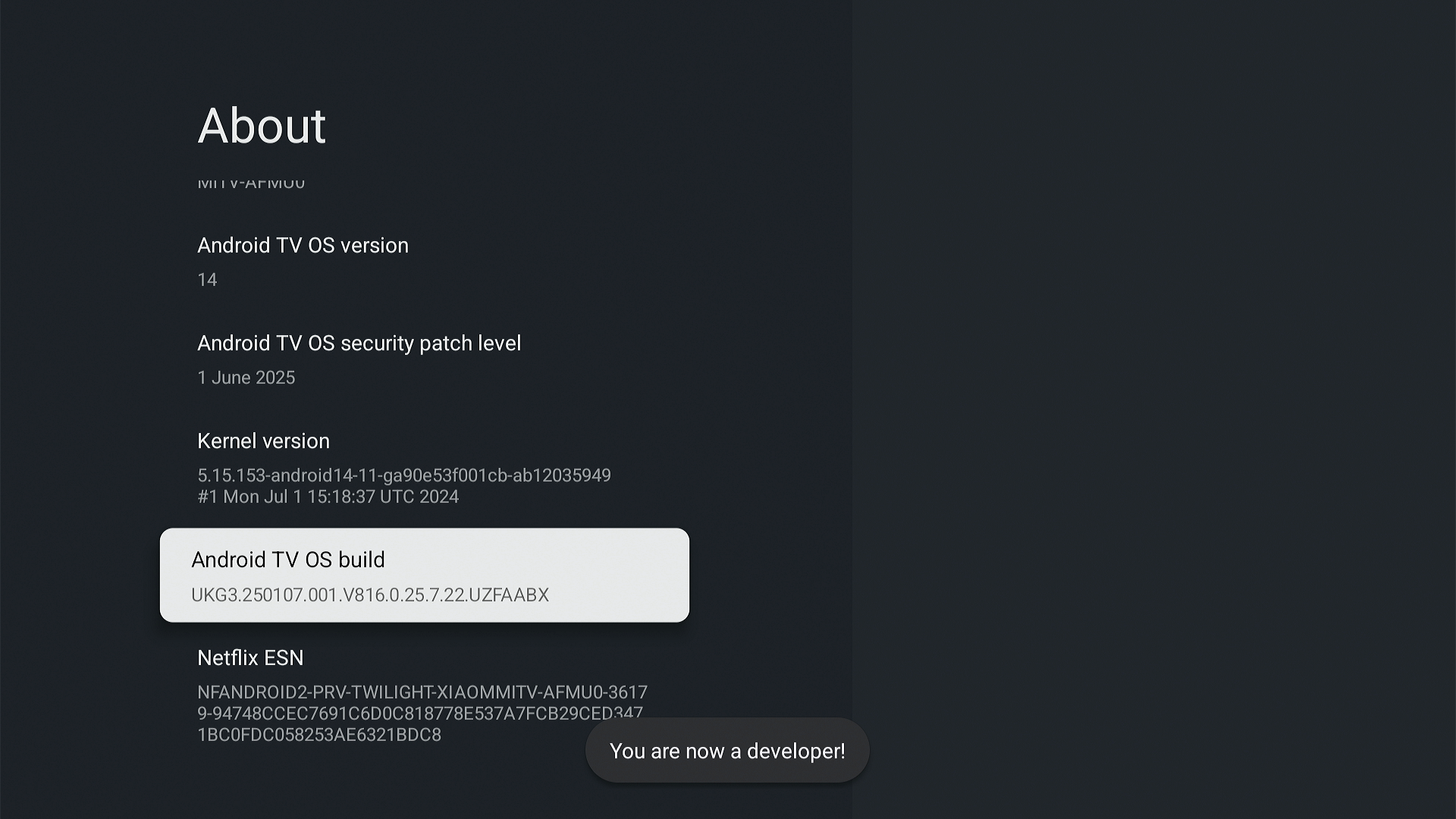
- Go to Quick Settings - All settings - System - About. Place cursor over 'Android TV OS build' and press remote OK button 7 times.
- A message will pop up at the bottom of the screen saying 'You are now a developer!'.
Ugoos UR02 Remote Ugoos UR02 Bluetooth Airmouse Voice Remote. £41.11 | Ugoos SK4 Pro + Gigabit + Multi-USB 4K CoreELEC compatible Android Media Player + multi-USB & Gigabit Ethernet. £187.99 | Ugoos AM9 Pro 4K CoreELEC compatible Android Media Player. £270.24 | Ugoos SK4 Pro 4K CoreELEC compatible Android Media Player. £176.24 |
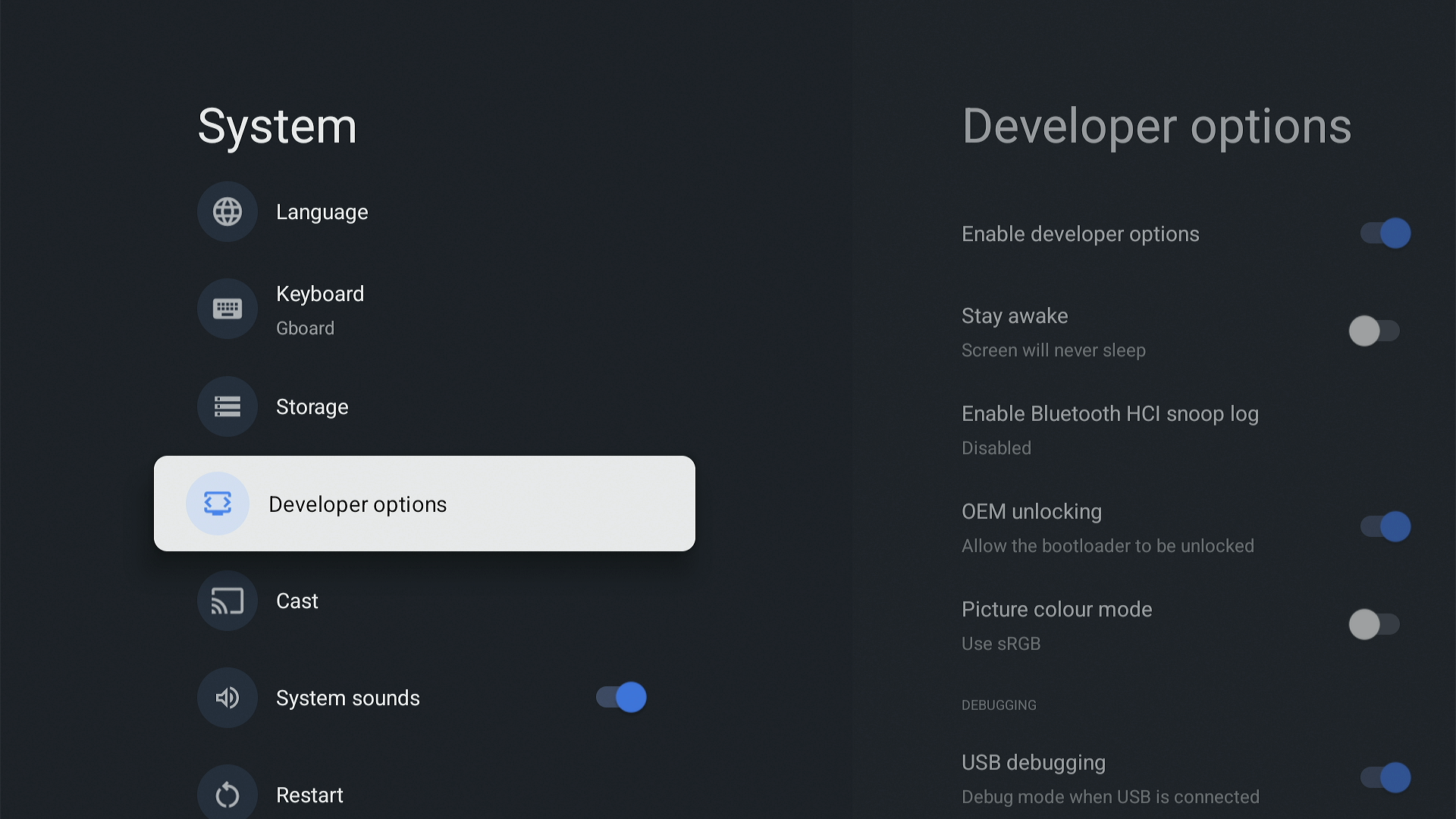
- You will have a new menu item in the System menu, 'Developer options'.
- In 'Developer options' make sure 'Enable developer options', 'OEM unlocking' and 'USB debugging' are enabled.
- Insert the CoreELEC bootable USB flash drive you prepared earlier into Xiaomi TV Box S (3rd Gen).
- Run the 'Reboot to CoreELEC' app and select 'FIRST REBOOT'.
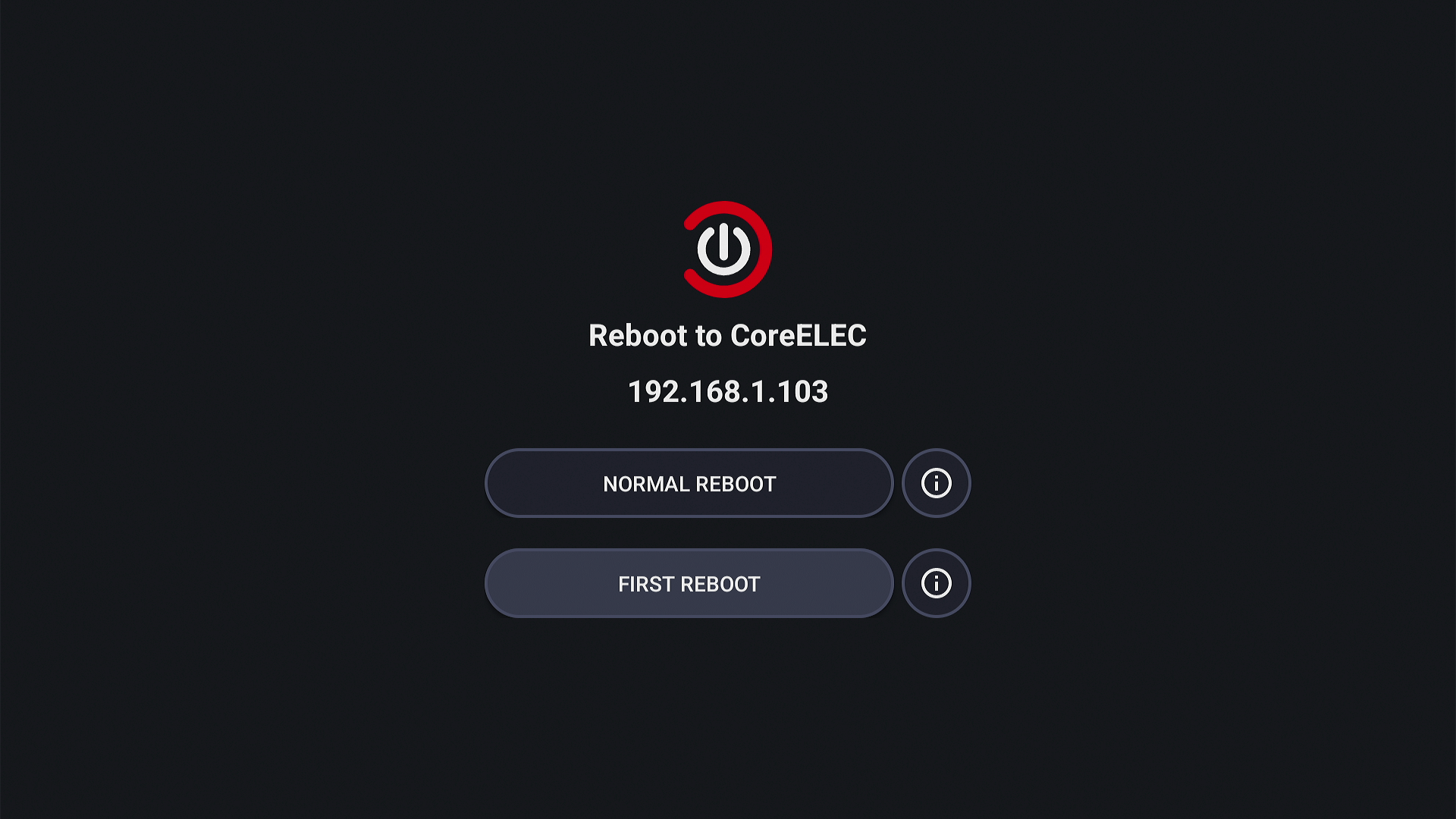
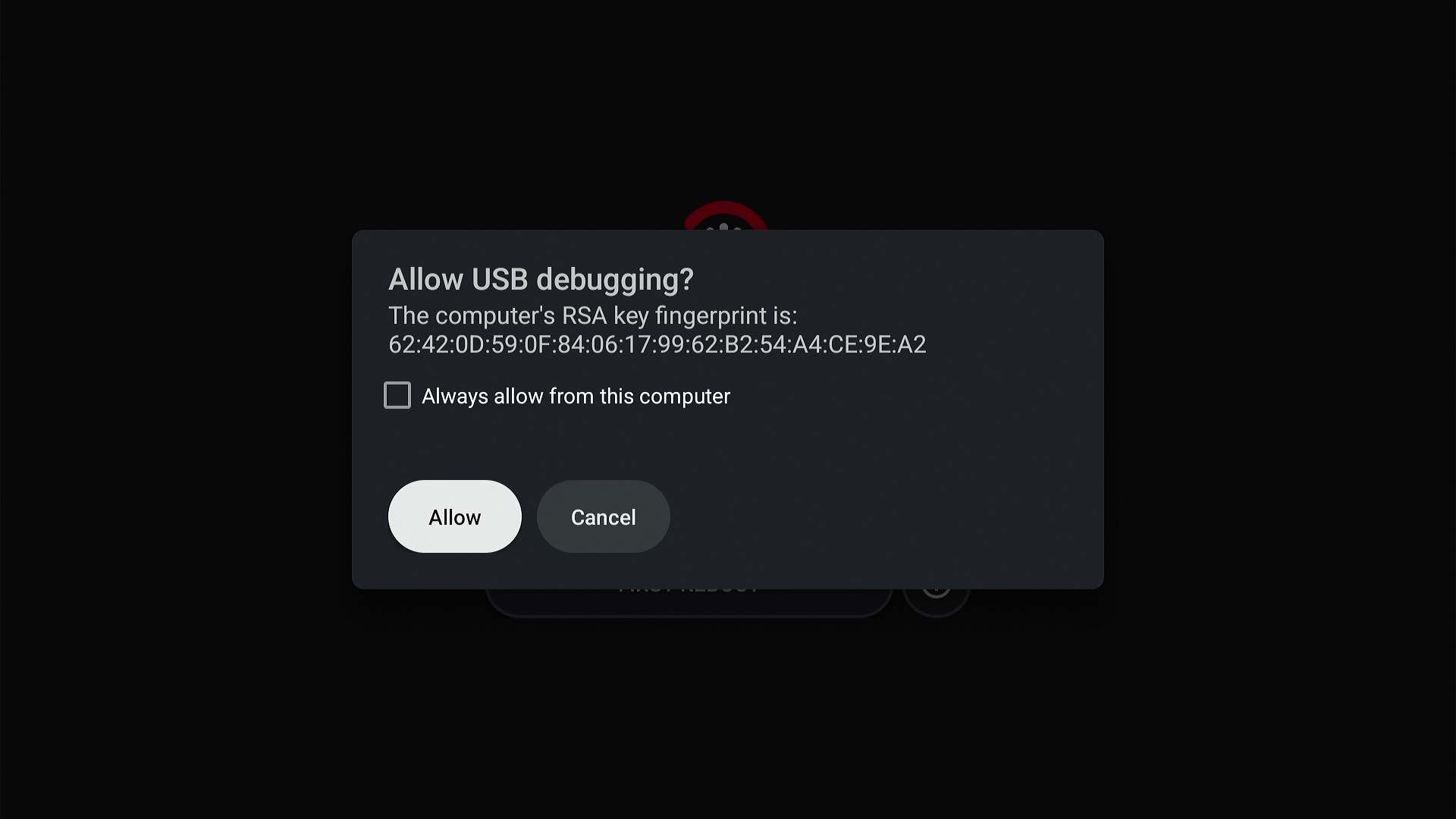
- Xiaomi TV Box S (3rd Gen) will reboot into CoreELEC and install CoreELEC to the USB flash drive.
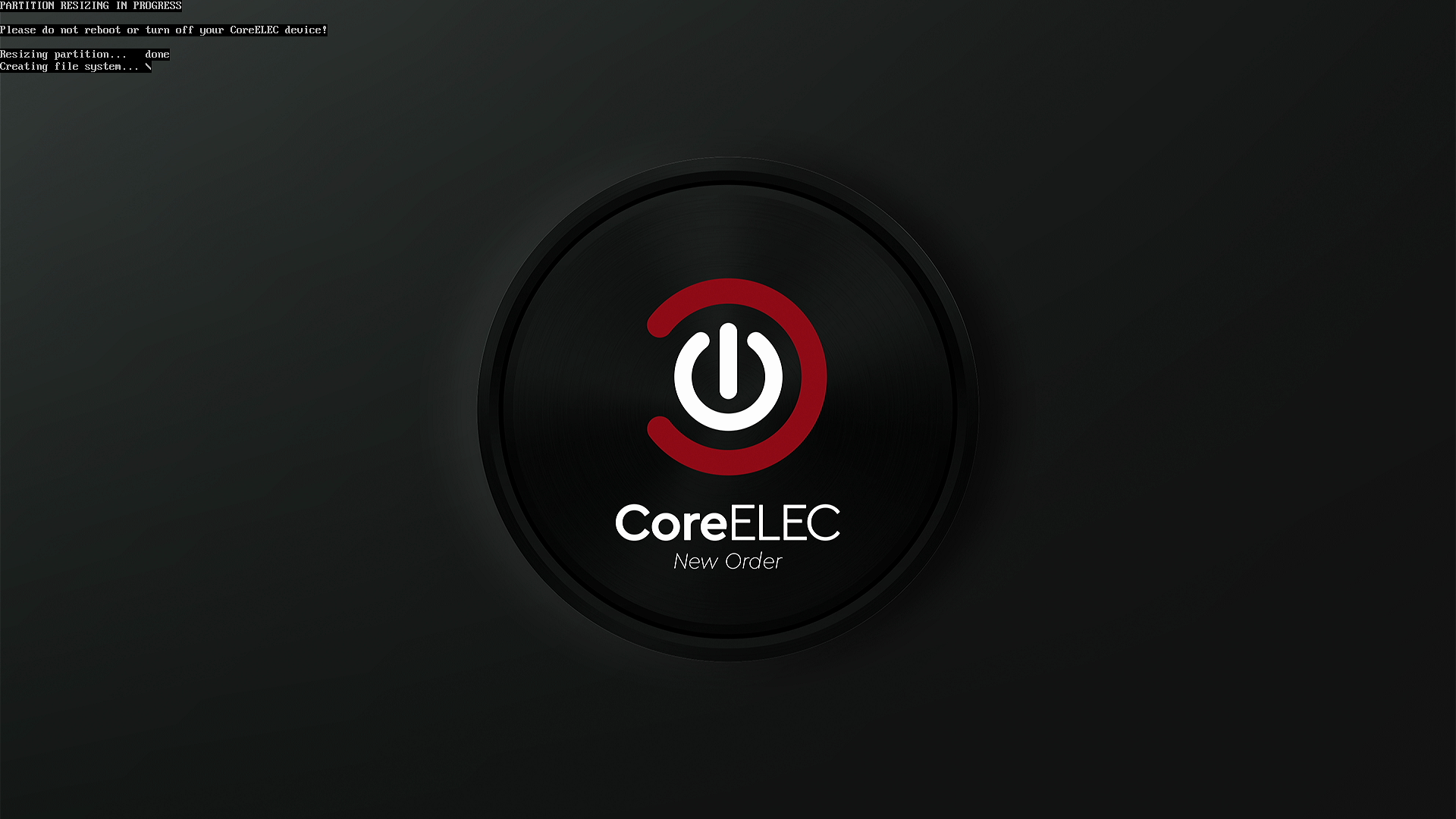
- Your Xiaomi TV Box S (3rd Gen) will now boot into CoreELEC unless you remove the USB drive or select 'boot from eMMC' in the CoreELEC shutdown menu.
- After CoreELEC has been installed you can disable developer options in Android settings. This is recommended because when enabled it will disable the USB port for storage.
Ugoos SK4 Pro 4K CoreELEC compatible Android Media Player. £176.24 | Ugoos UR02 Remote Ugoos UR02 Bluetooth Airmouse Voice Remote. £41.11 | Ugoos SK4 Pro + Gigabit + Multi-USB 4K CoreELEC compatible Android Media Player + multi-USB & Gigabit Ethernet. £187.99 | Ugoos AM9 Pro 4K CoreELEC compatible Android Media Player. £270.24 |
News section index and archive: futeko.com - News.
Zidoo Z30 Pro  8K Media Player with 3.5" HDD bay.  £469.99 | Zidoo Z9X 8K  8K Media Player. £364.24 | Zidoo Z3000 Pro  8K Media Player with 3.5" HDD bay and dual HDMI. £552.24 | R_volution PlayerOne 8K  Professional 8K Media Player with 3.5" HDD and R_video for easy library management.  £822.49 | Ugoos AM9 Pro 4K CoreELEC compatible Android Media Player. £270.24 |